


Search Result
Groups
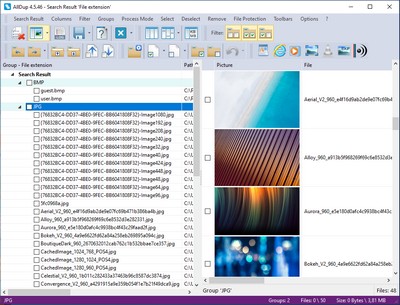
Once the search has ended, all duplicate files will be displayed sorted into groups. A group contains all files that were identified as duplicates using the search method you selected. Each group has one reference file. All other files inside the group are duplicates of the reference file. The reference file can be displayed with a different font color if required.Sorting groups and files
The content of the search result can be sorted by clicking with the left or right mouse button on a column header. Clicking with the left mouse button on a column header will sort only the group names but not the content of the groups. Clicking with the right mouse button on a column header will sort the files inside every group.Select files
All files at the search result can be selected or unselected by clicking the checkbox next to the file name. You also can use the automatic selection commands at the Menu bar or Toolbar.Highlight files or groups
You can highlight multiple files or groups by holding down the CTRL key and clicking on the files you would like to highlight. Clicking with the right mouse button on the highlighted files or groups will open a context menu with several commands.Delete, copy, move or rename files
Open the File Manager via the toolbar or menu bar to process all selected files from the search result. You also can delete, copy or move files without using the file manager by holding the CTRL key and clicking with the right mouse button on a file.Mouse commands
- Clicking with the right mouse button on a group or file will open context menu with several commands.
- Holding the CTRL key and clicking with the right mouse button on a file will open a context menu with several file commands.
- Clicking with the middle mouse button on a file will show the Windows explorer context menu for this file.
- A double-click on a file name opens the file with the associated application.
- A double-click on a file path opens the file path with the Windows explorer.
Keyboard Shortcuts
The following keyboard shortcuts are available:- With the space bar you can select or unselect a highlighted file or group.
- The F2 key enables you to rename a highlighted file.
- The DEL key enables you to remove all highlighted groups and files from the search result.
- Holding the CTRL key and pressing the DEL key will delete a highlighted file.
