Find similar images
With this search method, you can find similar or identical images. A checksum is created for each image, which is then used for comparison with the other images.- Comparison method
- Notes
- Image formats
- Match
- Image area
- Comparison size
- Checksum
- Compare only images with the same properties
- Detect image changes (slower)
- Detection rate test
- Examples
Comparison method
With the comparison methods aHash, bHash, dHash, mHash, and pHash, similar or identical images can be found. If you want to search for exactly identical images, you must use the MD5 or SHA comparison methods. You can find an overview of the detection rate of the comparison methods aHash, bHash, dHash, mHash, and pHash here. More information on the comparison methods aHash, bHash, dHash, mHash, and pHash can be found in the English-language articles Testing different image hash functions and Detection of Duplicate Images Using Image Hash Functions on the internet.aHash
With the aHash comparison method (Average Hash), the image is first downscaled to a size of 8x8 or 16x16 pixels. The image is then converted to grayscale, and the average color value of all image pixels is calculated. Afterwards, the checksum is created by comparing all image pixels with the average color value.bHash
With the bHash comparison method (Blockhash), the image is converted to a size of 128x128, 256x256, or 512x512 pixels. The image is then divided into a block matrix, and the color values of all pixels from each block are summed up. Afterwards, the mean value of all blocks is calculated and the checksum is created. With the "Fast" and "Precise" options, you can influence the accuracy of the calculation.dHash
With the dHash comparison method (Difference Hash), the image is downscaled to a size of 8x8 or 16x16 pixels. Afterwards, the image is converted to grayscale and the checksum is created by comparing the difference in brightness values between all adjacent pixels.mHash
With the mHash comparison method (Median Hash), the image is downscaled to a size of 8x8 or 16x16 pixels. The image is then converted to grayscale, and the median color value of all image pixels is determined. Afterwards, the checksum is calculated by comparing all image pixels with the median color value.pHash
With the pHash comparison method (Perceptual Hash), the image is downscaled to a size of 32x32 pixels. The image is then converted to grayscale and transformed using a discrete cosine transform (DCT). Next, the median color value of all pixels in an image area (8x8) at the top left of the image is determined. Afterwards, the checksum is calculated by comparing the color value of all pixels from the image area with the median color value.MD5, SHA
With these comparison methods, only exactly identical images can be found. The following checksums are available:
Checksum calculation time
We have calculated the time required for the creation of a checksum using the comparison methods aHash, bHash, dHash, mHash, and pHash, and listed it in the following table:| Comparison method | Comparison size | Checksum | Time required |
|---|---|---|---|
| aHash | 8x8 | 64-bit | 0,0450 ms |
| aHash | 16x16 | 256-bit | 0,1425 ms |
| bHash (Schnell) | 256x256 | 256-bit | 9,6030 ms |
| bHash (Präzise) | 256x256 | 256-bit | 28,4792 ms |
| dHash | 8x8 | 64-bit | 0,0458 ms |
| dHash | 16x16 | 256-bit | 0,0988 ms |
| mHash | 8x8 | 64-bit | 0,1435 ms |
| mHash | 16x16 | 256-bit | 1,1012 ms |
| pHash | 32x32 | 64-bit | 8,6922 ms |
Notes
The following files are automatically excluded from the search:- Files with a size of 0 bytes
- Images with a height or width smaller than the defined comparison size
- Corrupt, invalid, or incomplete image files that cannot be loaded
- Image files for which read access is blocked
Image formats
Here you can define which image formats should be checked during the search. Image files with the following file extensions are supported:3FR, ARW, BMP, CR2, CRW, CUT, DCR, DIB, DNG, EMF, ERF, GIF, HDP, ICO, IFF, J2C, J2K, JP2, JPE, JPG, JPEG, JPX, JFIF, KDC, MDC, MEF, MOS, MRW, NEF, ORF, PEF, PBM, PCX, PGM, PNG, PPM, PSD, RAF, RAS, RAW, RW2, SRW, TGA, TIF, TIFF, RAS, RLE, WBMP, WEBP, WMF, X3F
Match
Here you can define the percentage value at which two images are classified as identical. The determined percentage value between two images is displayed in the search result in the Match column. The percentage value always refers to the comparison with the reference image of a group, which is displayed with a different text color.Image area
With this option, you can define which image area a checksum should be created from. The following options are available:- entire image
- Top-left image area
- Top-right image area
- Bottom-left image area
- Bottom-right image area
Comparison size
This defines the width and height to which the image should be converted before a checksum is created from it. A smaller image area reduces the time required for checksum calculation but also has the disadvantage that more false-positive duplicates can be found. The larger the image area, the more information is available, which then results in a more accurate hit rate for identical images, but in turn increases the time required for checksum calculation. A comparison size of 100% means that a checksum is created from the image in its original size.Checksum
Here, the size of the checksum in bits is displayed. The checksum can only be changed when using the bHash comparison method.Compare only images with the same properties
These options are applied before the Detect image changes option. The following image properties are available:- File name
With this option, only images with the same name are compared. - File extension
With this option, only images with the same extension are compared. - Height and width
With this option, only images with exactly the same width and height are compared. - Image orientation
With this option, only images that are both in portrait or landscape format are compared. - Aspect ratio
With this option, only images with the same aspect ratio are compared. The aspect ratio is calculated using the formula "width divided by height". In the result, all but one decimal place are removed. An image size of 1920x1080 thus results in an aspect ratio of "1.7".
Detect image changes (slower)
With this option, various image changes can be detected when comparing two images. For this purpose, each activated image change is performed on the image to be compared, and another checksum is created from it. The following image changes can be checked:- Rotated 90° to the right
- Rotated 180° to the right
- Rotated 90° to the left
- Horizontally flipped
- Rotated 90° to the right and horizontally flipped
- Vertically flipped
- Rotated 90° to the left and horizontally flipped
Detection rate test
We conducted a test with various comparison methods to determine the detection rate for different image changes. For this purpose, 29 image copies were created from a JPEG image (1600x1200px, 606KB) and changed in color, size, and format. In the test, the original JPEG image and a modified image copy were always compared.The following comparison methods were used in the test:
| Comparison method | Comparison size | Checksum |
|---|---|---|
| aHash¹ | 8x8 | 64-bit |
| aHash² | 16x16 | 256-bit |
| bHash¹ (Fast) | 256x256 | 256-bit |
| bHash² (Precise) | 256x256 | 256-bit |
| dHash | 16x16 | 256-bit |
| mHash | 16x16 | 256-bit |
| pHash | 32x32 | 64-bit |
The percentage values in the following table indicate how well a comparison method detects the change in the image copy:
| Change | aHash¹ | aHash² | bHash¹ | bHash² | dHash | mHash | pHash |
|---|---|---|---|---|---|---|---|
| Image scaled down to 75% | 100 % | 100 % | 100 % | 100 % | 100 % | 100 % | 97 % |
| Image scaled down to 50% | 100 % | 100 % | 100 % | 100 % | 99 % | 100 % | 100 % |
| Image scaled down to 25% | 100 % | 100 % | 100 % | 100 % | 99 % | 100 % | 97 % |
| Image scaled up to 150% | 100 % | 100 % | 100 % | 100 % | 100 % | 100 % | 100 % |
| Image scaled up to 200% | 100 % | 100 % | 100 % | 100 % | 100 % | 100 % | 100 % |
| Image converted to grayscale | 97 % | 98 % | 97 % | 93 % | 97 % | 96 % | 97 % |
| Brightness increased by 30% | 95 % | 99 % | 100 % | 99 % | 98 % | 97 % | 91 % |
| Brightness decreased by 30% | 95 % | 95 % | 89 % | 93 % | 92 % | 94 % | 91 % |
| Contrast increased by 30% | 100 % | 99 % | 95 % | 96 % | 96 % | 96 % | 94 % |
| Contrast decreased by 30% | 100 % | 99 % | 100 % | 100 % | 98 % | 100 % | 94 % |
| JPEG quality reduced by 25% | 100 % | 100 % | 100 % | 100 % | 100 % | 100 % | 100 % |
| JPEG quality reduced by 50% | 100 % | 100 % | 100 % | 100 % | 99 % | 100 % | 100 % |
| JPEG quality reduced by 75% | 100 % | 100 % | 100 % | 100 % | 99 % | 100 % | 94 % |
| Image rotated 90° to the left | 47 % | 52 % | 68 % | 54 % | 46 % | 50 % | 47 % |
| Image rotated 90° to the right | 47 % | 52 % | 54 % | 55 % | 48 % | 50 % | 44 % |
| Image vertically flipped | 81 % | 81 % | 77 % | 73 % | 71 % | 80 % | 50 % |
| Image horizontally flipped | 69 % | 59 % | 62 % | 64 % | 54 % | 61 % | 47 % |
| White border added (30px) | 84 % | 82 % | 68 % | 61 % | 86 % | 82 % | 88 % |
| Black border added (30px) | 94 % | 94 % | 92 % | 89 % | 92 % | 92 % | 88 % |
| Image height reduced to 80% | 100 % | 100 % | 100 % | 100 % | 100 % | 100 % | 100 % |
| Image width reduced to 80% | 100 % | 100 % | 100 % | 100 % | 99 % | 100 % | 100 % |
| Conversion to PNG 24bit | 100 % | 100 % | 100 % | 100 % | 100 % | 100 % | 100 % |
| Conversion to BMP 24bit | 100 % | 100 % | 100 % | 100 % | 100 % | 100 % | 100 % |
| Conversion to GIF 256 colors | 100 % | 100 % | 100 % | 99 % | 99 % | 100 % | 97 % |
| 100 pixels removed from the left image edge | 92 % | 91 % | 88 % | 71 % | 82 % | 92 % | 78 % |
| 100 pixels removed from the right image edge | 97 % | 92 % | 86 % | 86 % | 85 % | 90 % | 91 % |
| 100 pixels removed from the top image edge | 94 % | 88 % | 86 % | 83 % | 86 % | 89 % | 84 % |
| 100 pixels removed from the bottom image edge | 98 % | 91 % | 87 % | 86 % | 86 % | 91 % | 84 % |
| 100 pixels of image border removed | 89 % | 80 % | 77 % | 75 % | 70 % | 80 % | 62 % |
The following table provides an overview of how many duplicates were found with the different comparison methods in the test. The evaluation was performed with a Match of at least 70%, 80%, and 90%.
| Comparison method | 70 % | 80 % | 90 % |
|---|---|---|---|
| aHash¹ (64-bit) | 26 | 26 | 23 |
| aHash² (256-bit) | 26 | 26 | 22 |
| bHash¹ (Fast) | 25 | 23 | 18 |
| bHash² (Precise) | 25 | 22 | 18 |
| dHash (256-bit) | 26 | 24 | 19 |
| mHash (256-bit) | 26 | 26 | 22 |
| pHash (64-bit) | 26 | 24 | 19 |
Examples
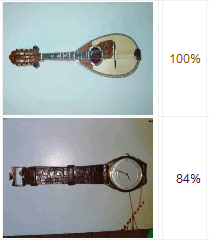
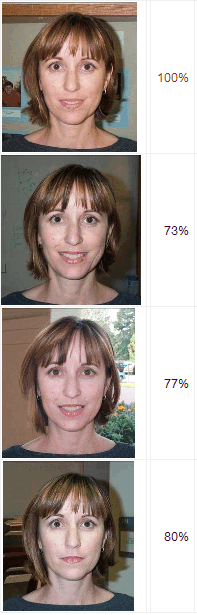
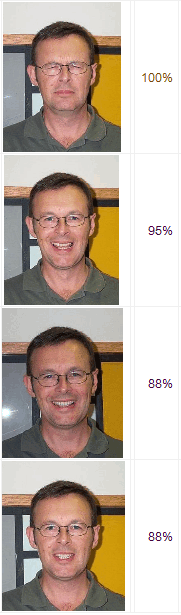
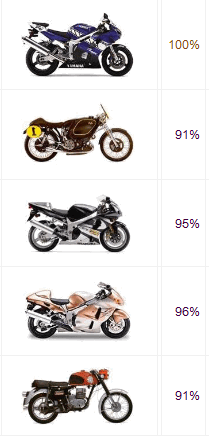
The displayed search results were created with the following settings:- Comparison method: aHash
- Comparison size: 16x16
- Checksum: 256-bit
Various shots of the same person
Shots of different motorcycles
The same object in a different pose
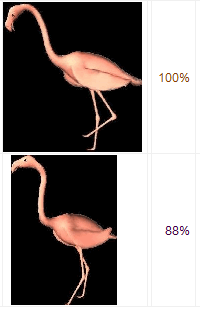
Different partial shot of the same motif
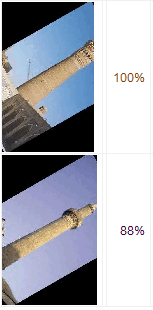
False-positive duplicates