AllSync Scheduler Reports
The Scheduler reports provide you with a comprehensive graphical and tabular preparation of your task activities:- Task Status Overview
Provides a quick chronological overview of the status and error rates of all tasks. - Start Dates
Provide you with a visual preview of past, current, and future task executions for all tasks. - Task Run Report
Allows you to perform an in-depth analysis and filtering of past events for a single task.
Task Status Overview
The status overview provides a compact dashboard to analyze the state and error rates of all scheduler tasks at a glance across various timeframes (Today, Yesterday, 7 Days).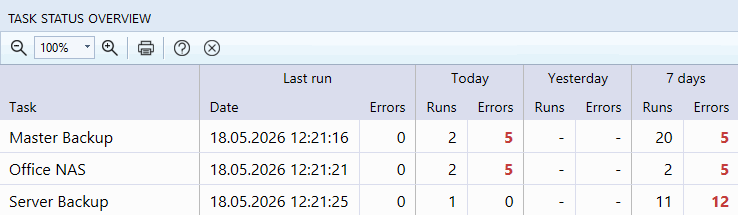
Table
| Column | Description |
|---|---|
| Task | This column lists all tasks activated in the scheduler by name. Tasks for which no log data is available during the entire evaluation period are shown grayed out. Double-clicking a task name allows you to open and edit the task properties. |
| Last Run | Shows the start time of the last task run and the number of errors that occurred. |
| Today | Shows the total number of all task runs today and the sum of errors that occurred. |
| Yesterday | Shows the total number of all task runs yesterday and the sum of errors that occurred. |
| 7 Days | Shows the cumulative number of task runs over the last 7 days and the total number of all errors that occurred. |
Toolbar
- Buttons Zoom in/out
The zoom icons can be used to adjust the display size of the table. - Button Print
This opens the table in the default browser and starts the print preview.
Start Dates
The reports for the start dates provide you with a clear graphical representation of all scheduled task executions based on a horizontal timeline in 3 different time periods:- Monthly overview: Provides a long-term overview of all scheduled starts for an entire calendar month.
- Weekly overview: Enables detailed monitoring of upcoming tasks for an entire calendar week.
- Daily overview: Displays the start times of a single day in a 24-hour overview. For tasks with the start type interval, the end time is also graphically visualized here to represent the entire period of task activity.
Display

- Task: In the left column, all tasks activated in the Scheduler are listed by name one below the other. Double-clicking on a task name allows you to open and edit the task properties.
- Timeline: The horizontal timeline visualizes either the days of the currently selected month (1 to 31), the days of the selected week (Mon to Sun), or the 24 hours of the selected day. Each cell in the timeline is displayed with a specific color that visualizes the status of the scheduling for the task:
- Start date today: The task is scheduled to start today.
- Future start date: The task is scheduled to start on this day.
- Past start date: The task was scheduled to start on this day.
- No start date: No start is scheduled for the task on this day.
- Info field: To the right of the timeline, either the color legend for the cells is displayed or task details such as start time, end time, start type, and the associated profiles are shown.
Control and Navigation:
- Change view: Using the buttons '30', '7', and '1' in the toolbar, you can switch between the monthly, weekly, and daily overview.
- Select period:
- Monthly overview: In the toolbar, you can change the period for the view using the selection fields for year and month.
- Weekly overview: Using the selection fields for year and calendar week, you can change the period for the view.
- Daily overview: With the date selection field, you can change the day for the view.
- Table cells: Using the buttons 'Fr' and '12', you can display either the day names or the calendar day in all cells with a start date.
- Change view: The magnifying glass icons can be used to adjust the size of the display to increase clarity.
- Info display: If you move the mouse pointer over a cell with a start date, information about the scheduled start is automatically displayed to the right of the timeline.
- Print: Clicking the printer icon opens the timeline with the default browser and displays the print preview.
- Close overview: Clicking the close icon closes the overview and displays the Scheduler log again.
Task Run Report
Here, a report of all saved task runs is created for you, which you can filter according to various criteria. The report is presented in a table and sorted in descending order by date, so that the most recent task runs are always listed first.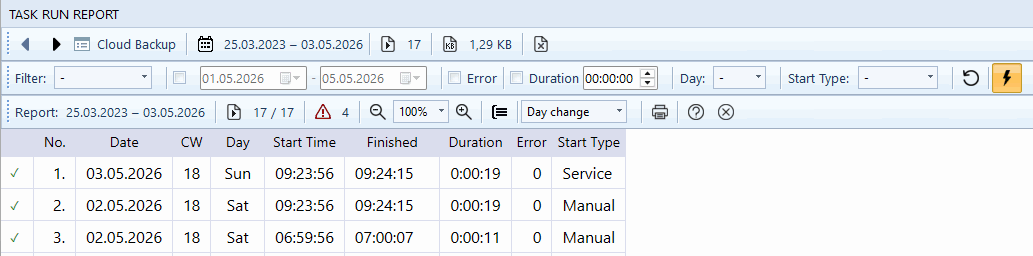
Table
| Column | Description |
|---|---|
| Status | An icon indicates whether the task run was completed successfully or with errors. |
| No. | Consecutive numbering of the table rows. |
| Date | The date on which the task was started. |
| CW | The calendar week of the task start. |
| Day | The day of the week on which the task was started. |
| Start Time | The time at which the task was started. |
| Finished | The time at which the task was finished. |
| Duration | The duration of the task run. |
| Errors | The number of error messages logged during the run. |
| Start Type | Indicates how the task was started: manually or automatically by the Scheduler/service. |
Tip: Double-clicking a row in the table automatically opens the task's log file and navigates directly to the corresponding entry of the task start. This allows you to perform a quick and targeted analysis of the detailed log messages for this task run.
'Task' toolbar
The following information is displayed with this toolbar:- Task name
- The complete period of all task runs in the log file
- The number of all task runs in the log file
- The size of the log file
- Buttons Forward & Back
You can navigate through your tasks with these buttons. - Button Delete old log entries
You can delete old task runs from the log file with this button.
The following actions are available here:- Delete entries older than 30 days
- Delete entries older than 90 days
- Delete entries older than 180 days
- Delete entries older than 360 days
- Custom delete...
- Delete all log entries
'Filter' toolbar
With this toolbar, you can restrict the report based on the following filter criteria:- Predefined time periods
This allows you to restrict the report based on the following time periods:- Today
- Yesterday
- Last 24 hours
- Last 7 days
- Current week
- Last 30 days
- This month
- Last month
- Current year
- Last year
- Last 90 days
- Last 180 days
- Last 360 days
- Period
This allows you to adjust the report period by setting a custom time window based on two date values. - Errors
This displays only task runs with error messages in the report. - Duration
This displays only task runs with the user-defined minimum duration in the report. - Day of the week
This displays only task runs in the report that were executed on the user-defined day of the week (Mon-Sun). - Start type
This allows you to restrict the report based on one of the following start types:- Manual
- Scheduler
- Service
The following functions are available to you with this toolbar:
- Button Reset filter settings
This button resets all filter criteria to the default values. - Button Apply filter immediately upon any change
If this button is activated, changes to the filter criteria are executed directly and the report is updated immediately. Deactivate this button if you first want to change several filter criteria without the report being updated immediately. Then activate the button so that the report is updated based on the new filter criteria.
'Report' toolbar
The following information is displayed with this toolbar:- The report period
- The number of all task runs in the report
- The number of task runs with error messages in the report
- Buttons Zoom in/out
The magnifying glass icons can be used to adjust the size representation of the report. - Selection Visual grouping of table rows
Allows a visual change of the background color during time transitions (e.g., when changing a calendar day) to improve the readability of large amounts of data.- Day change
- Week change
- Month change
- Button Print
This opens the report with the default browser and starts the print preview.